Packs
Packs are curated recipe collections created by Origano or official partners. They let you quickly populate your recipe library with high-quality, ready-to-use recipes — without having to enter them manually.
What is a Pack?
Think of a Pack like a recipe book you can browse in a bookstore: you can flip through it and see everything inside, but to actually cook from it, you need to bring it home. In Origano, importing a Pack is how you bring it home — it copies all the recipes into one of your personal recipe libraries.
Official Packs are marked with a Pack officiel badge and are curated by Origano or trusted partners.
Browsing Packs
When you click the Packs tab in the top navigation, you land on the Packs catalog. It displays all available official packs as cards.
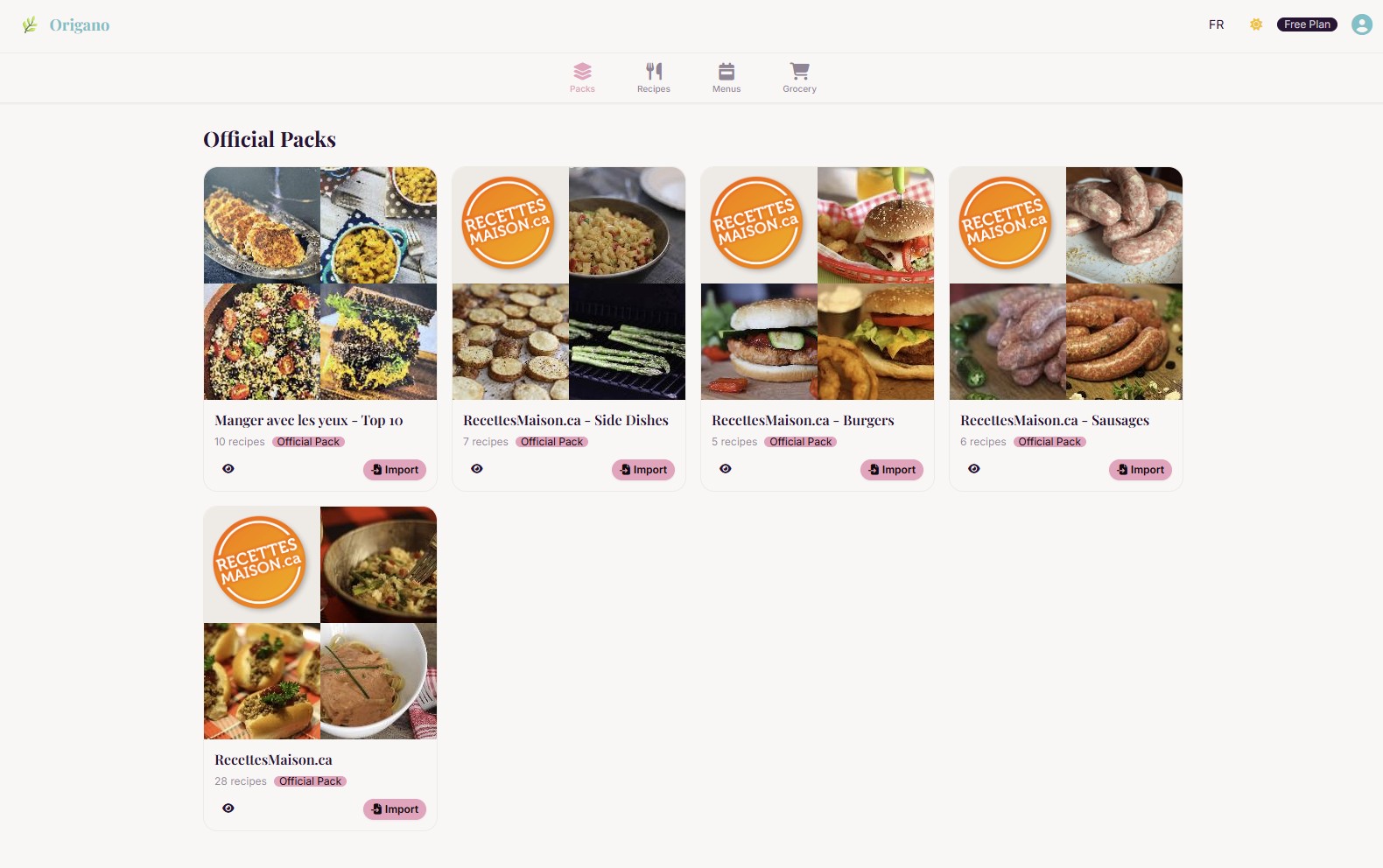
Each pack card shows:
- Cover image — a collage of photos from the recipes inside
- Pack name — the title of the collection
- Recipe count — how many recipes are included
- Official badge — confirms the pack is curated by Origano or a partner
- Preview button (👁 eye icon) — opens the pack to browse its recipes without importing
- Import button — copies all the recipes into your library
Previewing a Pack
Click the eye icon (👁) on any pack card to open the pack's detail page. You can browse all the recipes it contains before deciding to import it.
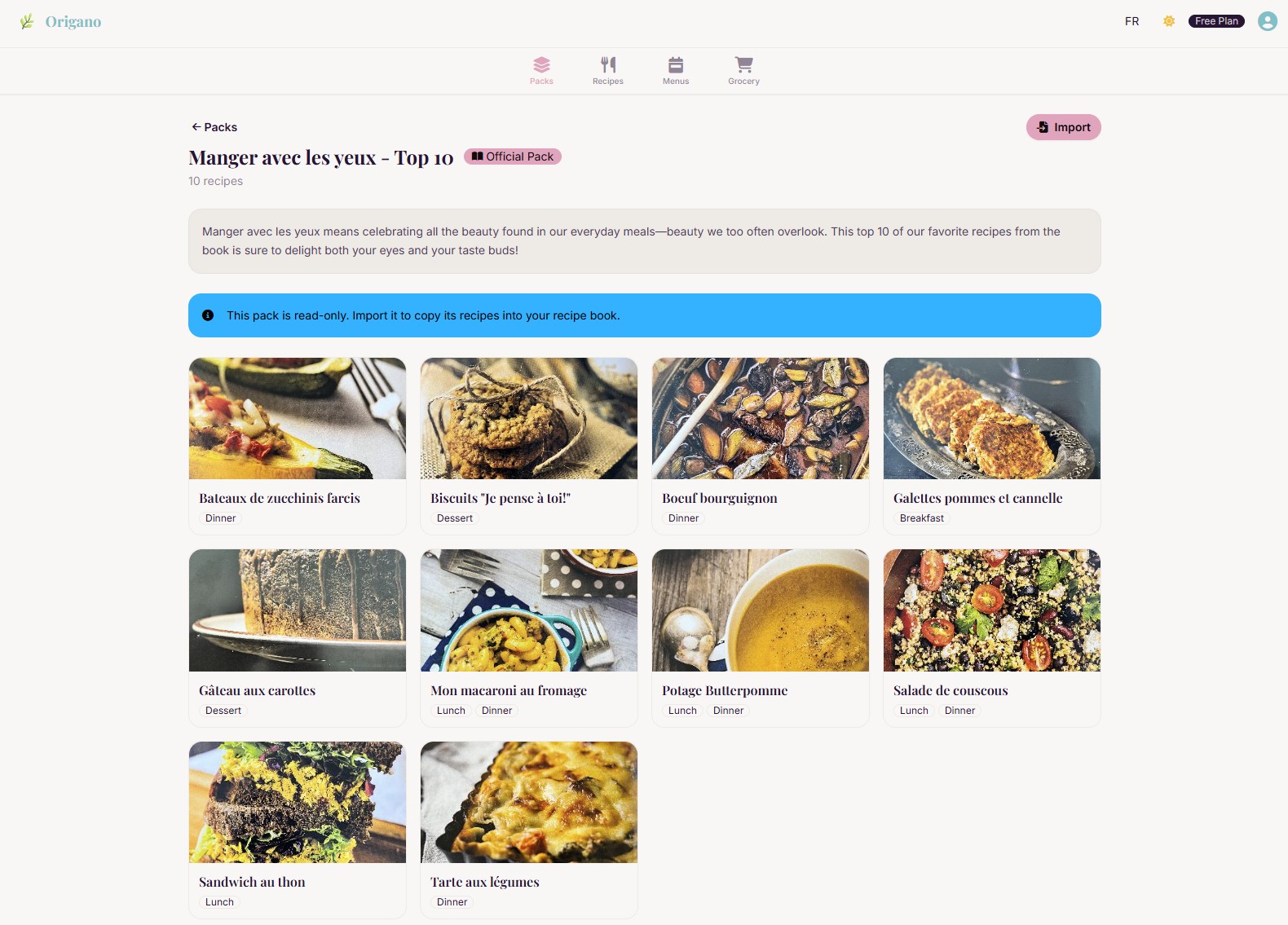
The detail page shows:
- Pack title and badge
- Recipe count
- Description — a short text explaining the pack's theme
- Read-only notice — a reminder that the pack is view-only until imported
- Recipe grid — all recipes with their photo and meal-type tags (e.g., Dinner, Dessert)
- Import button — available here too, at the top right
Importing a Pack
Click the Import button (either on the pack card or on the detail page) to add the pack's recipes to your library.
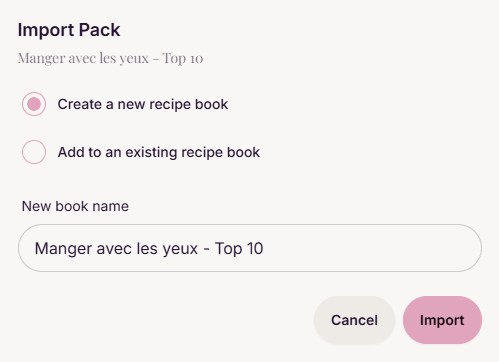
A dialog appears with two options:
| Option | Description |
|---|---|
| Create a new recipe library | Creates a brand-new library named after the pack (you can rename it). |
| Add to an existing library | Lets you choose an existing library to add the recipes to. |
Click Import to confirm. The recipes are instantly copied into your chosen library and are ready to use in Menus and your Grocery list.
Tips
- Importing a pack copies the recipes — the original pack is not affected. You can edit, delete, or modify your imported recipes freely.
- You can import the same pack into multiple libraries.
- Official packs are kept up to date by Origano — but changes to the pack do not automatically update your imported copies.